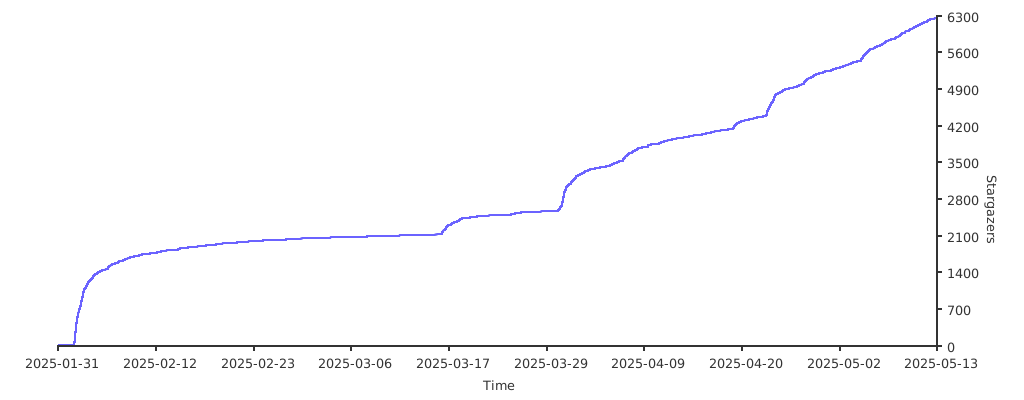
USP
Its unique selling point is the ability to drive native macOS apps in the background without stealing focus or cursor, combined with a unified API for sandboxed GUI automation across Linux, macOS, Windows, and Android.
Use cases
- 01Automating GUI tasks
- 02End-to-end QA for applications
- 03Benchmarking AI computer-use agents
- 04Developing cross-OS agent interactions
- 05Background macOS app control
Detected files (3)
libs/cua-driver/Skills/cua-driver/SKILL.mdskillShow content (47065 bytes)
--- name: cua-driver description: Drive a native macOS app via the cua-driver CLI (default) or MCP server — snapshot its AX tree, click/type/scroll by element_index, verify via re-snapshot. Use when the user asks you to operate, drive, automate, or perform a GUI task in a real macOS application on the host (e.g. "open a file in TextEdit", "navigate to /Applications in Finder", "click the Save button in Numbers"). --- # cua-driver Orchestrates macOS app automation via `cua-driver`. Whenever a user asks to drive a native macOS app, follow the loop in this skill rather than calling tools ad-hoc — the snapshot-before-action invariant is not optional and silently breaks if you skip it. ## The no-foreground contract — read this first **The user's frontmost app MUST NOT change.** This is the whole reason cua-driver exists. Users pay for the right to keep typing in their editor while an agent drives another app in the background. Violate this rule and every other nice property the driver gives you (no cursor warp, no Space switch, no window raise) stops mattering — you just shipped the Accessibility Inspector with extra steps. Before running any shell command, ask: **"does this raise, activate, foreground, or make-key any app?"** If yes, don't run it. Every one of the commands below activates the target on macOS and is therefore forbidden unless the user **explicitly** asked for frontmost state: - **Every form of the `open` CLI — `open -a <App>`, `open -b <bundle-id>`, `open <file>`, `open <path-to-App.app>`, `open <url>` — always activates.** macOS routes all forms through LaunchServices, which unhides and foregrounds the target regardless of whether you passed an app name, a bundle id, a document, a URL, or the bundle path itself. The activation happens even when the only intent was "start the process." **Never use `open` for any app launch.** This includes launching a just-built .app from a local build dir (e.g. `open build/Build/Products/Debug/MyApp.app`) — resolve the `CFBundleIdentifier` from `Info.plist` and use `launch_app` with that id. See "The narrow carve-out" below for why `launch_app` is safe even when the app internally calls `NSApp.activate`. - `osascript -e 'tell application "X" to activate'` — activates by design. Same for `... to open <file>`, `... to launch`, and anything with `activate` in the tell block. - `osascript -e 'tell application "System Events" to ... frontmost'` in a mutating form (setting `frontmost` rather than reading it). - AppleScript files that invoke `activate`, `launch`, or `open` against the target app. - `cliclick` (moves the user's real cursor to the target coords before clicking — a focus-steal-equivalent even if the app's window state is unchanged). - `CGEventPost` with `cghidEventTap` targeting a coordinate over a different app's window (warps the cursor, possibly activates on hit). - `AppleScriptTask`, `NSAppleScript`, `Process` wrapping `osascript` that contains any of the above. - `NSRunningApplication.activate(options:)` called from your own helper binary — same class. - Dock clicks and any `open` invocation (see the first bullet — every form of `open` goes through LaunchServices which activates, full stop). - **Keyboard shortcuts that semantically mean "focus here" — most notably Chrome / Safari / Arc's `⌘L` (focus omnibox) and Finder's `⌘⇧G` (Go to Folder).** These aren't pure key events — the receiving app interprets "user wants to type here" as activation intent and raises its window to be key. Even when delivered to a backgrounded pid via `hotkey`, the downstream app pulls focus. **For omnibox navigation specifically**, the correct path is `launch_app({bundle_id: "com.google.Chrome", urls: ["https://…"]})` — no omnibox dance, no `⌘L`, no focus-steal. Do NOT try `set_value` on the omnibox: Chrome's commit logic requires a "user-typed" signal that neither an AX value write nor `CGEvent.postToPid` keystrokes supply from a backgrounded pid — the URL lands in the field but Return fires as a no-op. See `WEB_APPS.md` → "Navigate to a URL" for the full pattern. The general principle: a shortcut that says "put my cursor inside this app" is a focus-steal; a shortcut that says "do this thing" (copy, save, quit) is fine. - **Tab-switching shortcuts in browsers (`⌘1..⌘9`, `⌘]`, `⌘[`, `⌘⇧[`, `⌘⇧]`) are visibly disruptive even when delivered to a backgrounded pid.** The app's key handler processes the shortcut, the window re-renders the new tab's content, the user sees their tabs flipping. There is no AX-only workaround: page content (HTML, form state, `AXWebArea`) populates only for the focused tab; inspecting a background tab requires activating it, which is the visible flip. Observed with Dia; the same mechanic applies to every Chromium-family browser (Chrome, Arc, Brave, Edge). **Prefer the windows-over-tabs pattern**: for each URL you need to drive backgrounded, use `launch_app({bundle_id, urls: [url]})` — browsers open each URL in a new **window**. Each window has its own `window_id`, its own AX tree, and can be inspected / interacted with via `element_index` without activating or switching anything. Tabs are a UX grouping for humans; cua-driver workflows should default to windows. See `WEB_APPS.md` → "Tabs vs windows" for the full pattern. Tab-title enumeration (read-only) IS safe — walk a window's toolbar AX tree for `AXTab` / `AXRadioButton` children and read their `AXTitle`s. Tab switching (activating one) is not. Reading frontmost state is fine (`osascript -e 'tell application "System Events" to get name of first application process whose frontmost is true'`). Mutating it is not. **Corollary — the AXMenuBar rule.** `AXMenuBarItem` + AXPick dispatches at the AX layer regardless of which app is frontmost, but macOS's on-screen menu bar always belongs to the frontmost app. If you drive a *backgrounded* app's menu bar, the AX call succeeds but the viewer sees the dispatch rendered over the *frontmost* app's menu bar — confusing in any observed session and routinely a silent no-op too, because action menu items go `DISABLED` when their owning app isn't the key window. **So: only use menu-bar navigation when the target is already frontmost.** For backgrounded targets, read state via in-window AX (window title, toolbar `AXStaticText`) and dispatch via in-window `element_index` or pixel clicks — both paths are frontmost-insensitive. Full rationale in "Navigating native menu bars" below. **"Open \<app\>" in user speech means launch, not activate.** `cua-driver launch_app` is the one correct path for process startup — it's idempotent (no-op on a running app), returns the pid, and has an internal `FocusRestoreGuard` that catches `NSApp.activate(ignoringOtherApps:)` calls the target makes during `application(_:open:)` and clobbers the frontmost back to what it was before the launch. That guard is why `launch_app` with `urls` (e.g. `{"bundle_id": "com.colliderli.iina", "urls": ["~/video.mp4"]}`) is safe even for apps that normally foreground on media-load (Chrome, Electron, media players). ## Defaults — always prefer cua-driver over shell shims **Default transport is the `cua-driver` CLI** — `Bash` shelling out to `cua-driver <tool-name> '<JSON-args>'`. MCP tools (prefix `mcp__cua-driver__*`) only when the user explicitly asks for them. CLI wins because it picks up rebuilds instantly, failures are easier to diagnose, and there's no per-tool schema-load overhead. Every reference to `click(...)`, `get_window_state(...)` etc. in this skill means `cua-driver click '{...}'` — translate to MCP form only when MCP is requested. ### Claude Code computer-use compatibility mode For normal Claude Code use, keep the default CLI or `cua-driver` MCP server path above. If the user explicitly wants Claude Code's vision/computer-use-style flow, they can register: ```bash claude mcp add --transport stdio cua-computer-use -- cua-driver mcp --claude-code-computer-use-compat ``` Observation: Claude Code vision flows appear to treat a screenshot MCP tool as the image-grounding anchor. This compatibility mode keeps the normal CuaDriver tools and changes only `screenshot`. The compatibility `screenshot` requires `pid` and `window_id`, captures only that target window, and returns the window-local pixel coordinate frame. Start with `launch_app` or `list_windows`, then call `screenshot({pid, window_id})`; do not assume desktop coordinates or a full-screen capture. Use MCP for this Claude Code vision/computer-use-style path. Do not shell out to `cua-driver screenshot` as a substitute: CLI screenshots still work as CuaDriver calls, but they do not expose the `mcp__cua-computer-use__screenshot` tool name that Claude Code appears to use as the image-grounding cue. Intent → tool mapping. If you find yourself reaching for the right column, something has gone wrong — re-read "The no-foreground contract" above: | Intent | Use | Don't use | |---|---|---| | Open / launch an app | `launch_app({bundle_id})` or `launch_app({bundle_id, urls:[...]})` | `open -a`, `osascript 'tell app … to launch/activate/open'` | | Find a pid | `list_apps` or `launch_app`'s return | `pgrep`, `ps`, `osascript frontmost` | | Enumerate an app's windows | `list_windows({pid})` — or read the `windows` array `launch_app` already returns | `osascript 'every window of app …'` | | Click / type / scroll / keys | `click`, `type_text`, `scroll`, `press_key`, `hotkey` | `osascript`, `cliclick`, raw `CGEvent`, `open <url>` | | Drag / drag-and-drop / marquee select | `drag({pid, from_x, from_y, to_x, to_y})` (pixel-only — macOS AX has no semantic drag) | `cliclick dd:`, `osascript drag` | | Screenshot | `screenshot` or the PNG in `get_window_state` | `screencapture` | | Quit an app | ask the user first, then `hotkey({pid, keys:["cmd","q"]})` | `kill`, `killall`, `pkill` | | Hand a file/URL to an app | `launch_app({bundle_id, urls:[<path>]})` | `open -a <App> <path>`, `open <url>` | ### The narrow carve-out The **only** legitimate use of `osascript -e 'tell app X to activate'` is when the user **explicitly** asked for frontmost state ("bring Chrome to the front", "make it frontmost", "I want to see X"). Reaching for it because a tool call returned something confusing is wrong — that's the skill's classic foot-in-the-door failure mode and it steals focus every time. When a cua-driver call surprises you, diagnose cua-driver first: - **Tiny screenshot / empty `tree_markdown`?** Check `cua-driver get_config` → `capture_mode`. Default `"som"` returns both the AX tree and screenshot. `"vision"` omits the AX tree (PNG only), `"ax"` omits the PNG. If a snapshot lacks a tree, `capture_mode` is almost certainly `"vision"` — either reason purely from the PNG or flip to `"som"` / `"ax"` via `set_config`. - **`has_screenshot: false`?** The window capture failed (transient race against a close, or the window has no backing store yet). Re-snapshot; if persistent, pick a different `window_id` via `list_windows`. - **`Invalid element_index` / `No cached AX state`?** You either skipped `get_window_state` this turn or passed a different `window_id` than the one the snapshot cached against. The cache is keyed on `(pid, window_id)` — indices don't carry across windows of the same app. Re-snapshot with the same window_id you're about to click in. - **Sparse Chromium AX tree?** Retry `get_window_state` once — the tree populates on second call. Only after those are ruled out, and only if the user's action genuinely needs frontmost state, fall through to the activate fallback. Always name the focus steal in your response ("I'll briefly bring Chrome to the front because …"). ### Self-check pattern Before every `Bash` call whose command line touches any macOS app (launching, opening, clicking, typing, scripting, screenshotting), run the self-check: 1. **Does this command foreground the target?** If yes — stop and translate to the cua-driver equivalent from the mapping table. 2. **Does this command move the user's real cursor?** (`cliclick`, any `CGEventPost` at `cghidEventTap` over another app's window). If yes — stop; use `click({pid, x, y})` which routes per-pid via SkyLight and never warps the cursor. 3. **Does this command bypass cua-driver entirely?** (`osascript` mutating GUI state, AppleScript files, external helpers.) If yes — stop; find the cua-driver tool that does the intent. If all three are "no," the command is safe. If you can't answer, default to stop and ask rather than proceed. A single `open -a` run by accident kills the demo, the trust, and the user's in-flight editor state. ## Prerequisites — check before starting 1. `cua-driver` is on `$PATH` (`which cua-driver`). If not, point the user at `scripts/install-local.sh` and stop. 2. Run `cua-driver check_permissions` (with the daemon up — see step 3). The default behavior also raises the system permission dialogs for any missing grants, so the user can grant on the spot. If either grant still reads `false` after that (user dismissed the dialog), tell them to open System Settings → Privacy & Security and grant Accessibility and Screen Recording to `CuaDriver.app`, then stop. Pass `'{"prompt":false}'` for a purely read-only status check that won't steal focus. 3. Start the daemon with `open -n -g -a CuaDriver --args serve` (the recommended form — goes through LaunchServices so TCC attributes the process to CuaDriver.app). `cua-driver serve &` also works; the CLI auto-relaunches through `open -n -g -a CuaDriver` when it detects a wrong-TCC context (any IDE-spawned shell: Claude Code, Cursor, VS Code, Conductor). Verify with `cua-driver status`. ## Using cua-driver from the shell Tool names are `snake_case`, management subcommands are `kebab-case` — no ambiguity. Tools invoked as `cua-driver <tool-name> '<JSON-args>'`. Management subcommands: - `open -n -g -a CuaDriver --args serve` — start persistent daemon (**required** for `element_index` workflows; without it each CLI invocation spawns a fresh process and the per-pid element cache dies between calls). `cua-driver serve &` also works — the CLI auto-relaunches via `open` when the shell's TCC context is wrong. Pass `--no-relaunch` / `CUA_DRIVER_NO_RELAUNCH=1` to opt out. - `cua-driver stop` / `status` - `cua-driver list-tools`, `describe <tool>` - `cua-driver recording start|stop|status` — see `RECORDING.md` Canonical multi-step workflow: ``` open -n -g -a CuaDriver --args serve cua-driver launch_app '{"bundle_id":"com.apple.calculator"}' # → {pid: 844, windows: [{window_id: 10725, ...}]} cua-driver get_window_state '{"pid":844,"window_id":10725}' cua-driver click '{"pid":844,"window_id":10725,"element_index":14}' cua-driver stop ``` ## Agent cursor overlay Visual cursor overlay for demos and screen recordings. Default: enabled. Toggle with `cua-driver set_agent_cursor_enabled '{"enabled":true|false}'`. A triangle pointer Bezier-glides to each click target, ring-ripples on landing, idle-hides after ~1.5s. Motion knobs: `set_agent_cursor_motion` takes any subset of `start_handle`, `end_handle`, `arc_size`, `arc_flow`, `spring` — tuneable at runtime, persisted to config. Requires an AppKit runloop, which `cua-driver serve` / `mcp` bootstraps. One-shot CLI invocations skip the overlay entirely. ## The core invariant — snapshot before AND after every action **Every action MUST be bracketed by `get_window_state(pid, window_id)`**: - **Before** — the pre-action snapshot resolves the `element_index` you're about to use. Indices from previous turns are stale; the server replaces the element index map on every snapshot, keyed on `(pid, window_id)`. Indices from turn N don't resolve in turn N+1, and indices from window A don't resolve against window B of the same app. Skip this and element-indexed actions fail with `No cached AX state`. - **After** — the post-action snapshot verifies the action actually landed. Without it you can't tell a silent no-op from a real effect. The AX tree change (new value, new window, disappeared menu, disabled button, etc.) is your evidence that the action fired. If nothing changed, the action probably failed silently — say so, don't assume success. This applies to pixel clicks too — re-snapshot after to confirm the click landed on the intended target. ### Why window selection is the caller's job now `get_app_state` used to pick a window for you via a max-area heuristic that returned the wrong surface on apps with large off-screen utility panels. Concrete reproducer: IINA's OpenSubtitles helper (600×432 off-screen) out-area'd the visible 320×240 player window, so `get_app_state(pid)` screenshot'd the invisible panel and clicks landed there silently. The new `get_window_state(pid, window_id)` makes the caller name the window explicitly — the driver validates that the window belongs to the pid and is on the current Space, then snapshots exactly what was asked for. Enumerate candidates via `list_windows` or read the `windows` array `launch_app` already returns. ## Behavior matrix Two orthogonal axes shape what the agent can do. **capture_mode → addressing mode** | `capture_mode` | `get_window_state` returns | Use for actions | |---|---|---| | **`som`** (default) | tree + screenshot | `element_index` preferred; pixel fallback | | **`ax`** | tree only (no PNG) | `element_index` only | | **`vision`** | PNG only (no tree) | pixel only — see [SCREENSHOT.md](./SCREENSHOT.md) | `vision` was renamed from `screenshot` — the old name still decodes as a deprecated alias, so an on-disk `"capture_mode": "screenshot"` keeps working. Default is `som` so element_index clicks work the first time a user calls `get_window_state`; the other modes are opt-in when the caller specifically doesn't want one half of the work. Note the tool named `screenshot` is separate (raw PNG, no AX walk) and unrelated to the capture mode. When a snapshot looks wrong (tiny screenshot / empty tree), check `cua-driver get_config` for `capture_mode` before anything else. Pure-vision mode has its own caveats — Claude Code's vision pipeline downsamples dense text aggressively, so pixel grounding takes multiple correction cycles on text-heavy UIs. Read [SCREENSHOT.md](./SCREENSHOT.md) before driving anything in that mode; it documents the iterate/annotate/verify recipe plus the JPEG-over-PNG finding. **Window state → what works** | state | `get_window_state` | `click`/`set_value` (AX) | `press_key` commit (Return/Space/Tab) | pixel click | |---|---|---|---|---| | frontmost | ✅ | ✅ | ✅ | ✅ | | backgrounded / visible | ✅ | ✅ | ✅ | ✅ | | **minimized** (Dock genie) | ✅ | ✅ (no deminiaturize — AX actions fire on the minimized window in place) | ❌ silent no-op / system beep — use `set_value` or click equivalent | ❌ no on-screen bounds | | hidden (`hides=true` / `NSApp.hide`) | ✅ | ✅ | depends | ❌ | | on another Space | ⚠️ AX tree often stripped to menu-bar-only on SwiftUI apps (System Settings) — AppKit apps usually fine. Response carries `off_space: true` + `window_space_ids` so you can detect it | ✅ | ✅ | ❌ window not in current-Space list | **Critical cell — minimized + keyboard commit.** The keystroke reaches the app but AX focus doesn't propagate to renderer focus on a minimized window. Workarounds in order of preference: `set_value` to write the field's entire value directly, or AX-click a commit-equivalent button (Go, Submit, checkbox). Tell the user the window needs to un-minimize only as a last resort. ## The canonical loop ``` launch_app(target) → pick window_id from the returned `windows` array (or call list_windows(pid) separately) → get_window_state(pid, window_id) → [act] # every action also takes (pid, window_id) → get_window_state(pid, window_id) → verify ``` `launch_app` now returns a `windows` array alongside the pid, so the common case collapses to two calls (`launch_app` → `get_window_state`) without a separate `list_windows` hop. ### 1. Resolve target pid — always via `launch_app` **Always start with `launch_app`**, whether or not the target is already running. It's idempotent (relaunching returns the existing pid with no side effects) and gives you the pid in one call — no `list_apps` hop. - `launch_app({bundle_id: "com.apple.finder"})` — preferred, unambiguous. - `launch_app({name: "Calculator"})` — when bundle_id isn't known. `launch_app` is a **hidden-launch primitive by design** — that's the entire point of cua-driver: agents drive apps in the background while the user keeps typing in their real foreground app. The target's window is initialized (AX tree fully populated, clickable via `element_index`, the pid appears in `list_apps`) but not drawn on screen. The driver never activates or unhides apps on its own; that would violate the no-foreground contract the whole driver exists to protect. If the user explicitly wants the window visible (usually for a demo or recording), they unhide it themselves — Dock click, Cmd-Tab, or Spotlight. Do not reach for `open` / `osascript activate` as a shortcut to make the window visible; those paths break the backgrounded invariant on every call, not just the call that "needed" the foreground. Say out loud what the user needs to do ("click the Todo app in your Dock to bring it forward") and let them do it. Never shell out to **any** form of `open` (including `open <path-to-App.app>` for a just-built binary — resolve the bundle id from `Info.plist` and use `launch_app` with that), `osascript 'tell app … to launch/open'`, or similar. Those paths activate the target, bypass the driver's focus-restore guard, and require a Bash permission prompt the agent loop shouldn't be burning on app launch. See "Prefer cua-driver tools over shell shims" above for the full intent → tool mapping. `list_apps` is for app-level discovery (answering "what's installed / running / frontmost?") — not part of the core action loop. Skip it in the loop. For **window-level** questions — "does this app have a visible window?", "which Space is this window on?", "which of this pid's windows is the main one?" — call `list_windows` instead; the app record doesn't carry window state on purpose. In the common single-window case you can skip `list_windows` entirely and read the `windows` array that `launch_app` already returned. ### 2. Snapshot and act by element_index Call `get_window_state({pid, window_id})` with the `window_id` from `launch_app`'s `windows` array (or a fresh `list_windows({pid})` if you're interacting with a long-lived process). The default `som` capture_mode returns **both the AX tree and screenshot**, so the canonical loop works immediately without any config change. The rest of this section walks through `som` mode. If you're in `vision` mode (PNG only, no AX tree), flip back: `cua-driver set_config '{"key": "capture_mode", "value": "som"}'`. In `som` mode (the default) the response carries: - `tree_markdown` — every actionable element tagged `[N]`. That `N` is the `element_index`. The tree can be very large (Finder is ~1600 elements, ~190 KB); when it exceeds token limits the MCP harness saves it to a file and returns the path. Use `Bash` + `jq -r '.tree_markdown'` + `grep` to pull the section you need. - `screenshot_file_path` — absolute path to the saved screenshot when `screenshot_out_file` was passed. Absent otherwise. - `screenshot_width` / `_height` / `_scale_factor` — dimensions of the captured image. Present whenever a screenshot was taken. **Getting the screenshot as a file (CLI and context-constrained agents):** ```bash # write to file — stdout stays readable (AX tree / summary only, no base64) cua-driver get_window_state '{"pid":N,"window_id":W,"screenshot_out_file":"/tmp/shot.jpg"}' # CLI --screenshot-out-file flag is equivalent and works for all capture modes cua-driver get_window_state '{"pid":N,"window_id":W}' --screenshot-out-file /tmp/shot.jpg ``` Pass `screenshot_out_file` when using `get_window_state` via CLI or from an agent whose context window can't absorb ~31 KB of inline base64 (e.g. OpenCode with a local Ollama model). The MCP image content block is omitted from the response when this param is set — the model receives only the AX tree and `screenshot_file_path`, then reads the image from disk. **Reason over both the tree AND the screenshot — they're complementary, not redundant.** In `som` mode every turn's `get_window_state` gives you both halves and you should pull signal from each: - The **AX tree** tells you *what's clickable* — roles, labels, `element_index` handles, advertised actions, parent-child structure. This is the ground truth for dispatching. - The **screenshot** tells you *which one* — the tree often has many buttons with similar or empty labels ("Delete", "OK", anonymous UUID-labeled buttons, five `AXStaticText = " "`), and visual context disambiguates. Captions, colors, layout relationships visible in pixels often don't show up in the AX tree at all (especially in Chromium / Electron / web content). Canonical pattern: look at the screenshot to decide "the blue Subscribe button on the top-right of the video card", then walk the tree to find the matching `AXButton` and dispatch by its `element_index`. Don't try to do it from just the tree — you'll pick the wrong element when labels repeat. Don't try to do it from just the screenshot — you lose the reliable AX-action path and the safe backgrounded-dispatch. Reach for pixel coordinates only when the target is a canvas / video / WebGL / custom-drawn surface that isn't in the AX tree (see Pixel-coordinate clicks below). The `actions=[...]` list on each element is **advisory**, not authoritative. cua-driver does not pre-flight check against it — `click({pid, element_index})` always attempts `AXPress` (or the action you pass) and surfaces whatever the target returns. Many apps accept `AXPress` on elements that don't advertise it — Chrome's omnibox suggestion `AXMenuItem` is a live example. **Try the click first** — pivot only on the returned AX error code. Dispatch table (every row assumes a `(pid, window_id)` pair from the last `get_window_state`; `window_id` is required alongside `element_index`, ignored on pixel-only forms unless you want to anchor the conversion against a specific window): | Intent | Tool | Notes | |---|---|---| | List an app's windows | `list_windows({pid})` | returns `window_id`, `title`, `bounds`, `z_index`, `is_on_screen`, `on_current_space`. Already included in `launch_app`'s response — only call this for long-lived pids | | Snapshot a window | `get_window_state({pid, window_id})` | returns `tree_markdown` + `screenshot_*`; populates the `(pid, window_id)` element_index cache | | Left click | `click({pid, window_id, element_index})` | default `action: "press"`. Pixel form: `click({pid, x, y})` (window_id optional — when supplied, pinpoints the anchor window) — `modifier: ["cmd"]` | | Double-click / open | `double_click({pid, window_id, element_index})` | AXOpen when advertised (Finder items, openable rows); else stamped pixel double-click at the element's center. Pixel form: `double_click({pid, x, y})` — primer-gated recipe lands on backgrounded Chromium web content (YouTube fullscreen, Finder open-on-dbl). `click({..., count: 2})` still works and routes through the same recipe; `double_click` is the intent-first spelling | | Right click / context menu | `right_click({pid, window_id, element_index})` or `click({pid, window_id, element_index, action: "show_menu"})` | Chromium web-content coerces pixel right-click to left — see `WEB_APPS.md` | | Type at cursor | `type_text({pid, text, window_id, element_index})` | `AXSelectedText` write; focuses first | | Set whole field value | `set_value({pid, window_id, element_index, value})` | sliders, steppers, text fields; **use for keyboard-commit workarounds on minimized windows** | | Scroll | `scroll({pid, direction, amount, by, window_id, element_index})` | synthesizes PageUp/PageDown/arrows via SLEventPostToPid | | Focus + send key | `press_key({pid, key, window_id, element_index, modifiers})` | element_index sets AXFocused, then posts key | | Send key to pid | `press_key({pid, key, modifiers})` | no focus change; key goes to pid's current focus | | Modifier combo | `hotkey({pid, keys})` | e.g. `["cmd","c"]`; posted per-pid, not HID tap | | Unicode keystrokes | `type_text({pid, text, delay_ms})` | AX write with automatic CGEvent fallback; reaches Chromium/Electron inputs | **All keyboard/text primitives require `pid`.** There is no frontmost-routed variant — every key goes to the named target via `CGEvent.postToPid`, so the driver cannot leak keystrokes into the user's foreground app. **Why `element_index` is the primary path:** works on hidden / occluded / off-Space windows, no focus steal, stable across rebuilds, labels tell you what you're clicking. Reach for pixel coordinates only when AX can't. ### Pixel-coordinate clicks The pixel path (`click({pid, x, y})`) is for surfaces the AX tree doesn't reach — canvases, video players, WebGL, custom-drawn controls. Coords are **window-local screenshot pixels** (same space as the PNG `get_window_state` returns). Top-left origin, y-down. The driver handles screen-point conversion internally. Passing `window_id` alongside `x, y` is optional but recommended — it pins the coordinate conversion to the window whose screenshot produced the pixel, rather than the driver's heuristic choice. #### Reading coordinates from the PNG PNGs returned by `get_window_state` are capped at **1568 px long-side by default** (`max_image_dimension` config), matching Anthropic's multimodal-vision downsampling limit. That means the image the model reasons over and the image the click tool's coordinate system lives in are the **same resolution** — just look at the PNG, pick a pixel, click at that pixel. No scaling math. This is the default because the mismatch between "rendered thumbnail" and "native PNG" was a recurring coord-estimation footgun. If you opt out (explicit `max_image_dimension=0` for pixel-perfect verification flows), the old rule applies: don't eyeball coords from whatever your client renders — it may be 2-4× smaller than the PNG on disk, and a 2% error in thumbnail space becomes ~80 px in the real image. Use the crosshair recipe below against the full-resolution file in that case. 1. `get_window_state({pid, window_id})` returns an image capped at 1568 long-side (default) plus its dimensions (`screenshot_width` / `screenshot_height`). Write the bytes to disk with `--screenshot-out-file <path>` in any capture mode — works identically in `vision` (where it's the only way) and `som` (where it sidesteps the jq + base64 dance on the spliced `screenshot_png_b64` field). 2. You are a multimodal model — look at the PNG. Since the PNG matches what you see, pick the target pixel directly. No fractional math needed. 3. When precision matters (small targets, dense UIs), draw a crosshair on the image (do **not** crop — cropping loses the coordinate system and requires error-prone offset math) and show it before clicking: ```python from PIL import Image, ImageDraw img = Image.open('/tmp/shot.png') draw = ImageDraw.Draw(img) x, y = <your_coordinate> r = 18 draw.ellipse([x-r, y-r, x+r, y+r], outline='red', width=4) draw.line([x-30, y, x+30, y], fill='red', width=3) draw.line([x, y-30, x, y+30], fill='red', width=3) img.save('/tmp/shot_annotated.png') ``` 4. Only dispatch the click after the user (or your own re-read of the annotated image) confirms the crosshair is on target. #### Addressing variants - `click({pid, x, y})` — single left-click. - `click({pid, x, y, count: 2})` — double-click. - `click({pid, x, y, modifier: ["cmd"]})` — cmd-click. Accepts any subset of `cmd/shift/option/ctrl`. - `right_click({pid, x, y})` — also takes `modifier`. The pixel path animates the agent cursor overlay but never warps the real cursor. If the pid has no on-screen window the call errors with `pid X has no on-screen window` — you need a visible window to anchor the conversion. #### How the pixel click is dispatched The recipe is the backgrounded "noraise" sequence: yabai's focus-without-raise SLPS event records followed by an off-screen user-activation primer and the real click, all stamped via `SLEventPostToPid`. The target app becomes AppKit-active for event routing but its window does **not** rise to the front of the z-stack, and macOS's "switch to Space with windows for app" follow is suppressed. Full mechanics in `Sources/CuaDriverCore/Input/MouseInput.swift` (`clickViaAuthSignedPost`) and the companion `FocusWithoutRaise.swift`. #### Known limits - **Chromium `<video>` play/pause**: pixel click is often rejected by HTML5's click-to-play handler on some builds. Use keyboard instead: `press_key({pid, key: "k"})` (YouTube) or `press_key({pid, key: "space"})` (generic). Keyboard events travel through a different auth envelope. - **Pixel right-click on Chromium web content** coerces to a left-click — a known Chromium renderer-IPC limitation that affects every non-HID-tap synthesis path. For context menus on AX-addressable elements (links, buttons, toolbar items), use `right_click({pid, element_index})` instead. ### Canvases, viewports, games (Blender, Unity, GHOST, Qt, wxWidgets) Apps whose main surface is an OpenGL / Metal / Qt / wxWidgets viewport expose **no useful AX tree** — the whole surface is one opaque `AXGroup` or `AXWindow` from AX's perspective. Per-pid event paths (`SLEventPostToPid`, `CGEvent.postToPid`) are filtered by the viewport's own event-source check and silently dropped — the event loop wants "real HID origin". The working pattern: 1. Bring the target frontmost (a brief `osascript activate` is acceptable here — this is the carve-out the skill's osascript gate allows). 2. `CGEvent.post(tap: .cghidEventTap)` with a leading `mouseMoved` event (~30 ms before the click). `cua-driver click` when the target is frontmost automatically takes this path. 3. Accept that the real cursor visibly moves — `cghidEventTap` is the system HID stream, the cursor warps to the click point. There is no backgrounded path that reaches these apps today. ## Navigating native menu bars (AXMenuBar) **Only drive the menu bar when the target app is frontmost.** This is the single most-misused cua-driver capability. If the target is backgrounded, don't reach for `AXMenuBarItem` + AXPick — use in-window `element_index` or pixel clicks instead. Two reasons, one functional and one perceptual: - **Functional:** menu items that touch document/playback/editor state go `DISABLED` when their owning app isn't the key window (Preview rotate, IINA speed change, most editor commands). AXPick + AXPress will dispatch successfully from the driver's side but no-op at the target — you get a silent false-pass. - **Perceptual (matters for demos, screen recordings, and anything the user watches live):** macOS's screen-rendered menu bar always belongs to the *frontmost* app. AXPick on a backgrounded app's `AXMenuBarItem` dispatches to that app's per-process menu at the AX layer, but any visible menu render happens over the frontmost app's menu bar — the viewer sees an IINA submenu flashing on top of Chrome's menus, which reads as "the agent clicked the wrong app." The AX call was correct; the frame the user sees is not. For recorded or observed sessions, this is an integrity bug even though it's not a correctness bug. **Good decision rule:** if the target is not already frontmost, do not use `AXMenuBarItem` at all. For *reading* in-window state, snapshot the window AX tree — most apps expose the same state via an in-window `AXStaticText`, title bar, or toolbar. For *dispatching* actions, use in-window `element_index` (buttons, toolbar items) or pixel clicks on in-window controls — both dispatch via AppKit's window-under-pointer hit-test and are **not** frontmost-gated. When the target IS frontmost, the menu-bar flow below is fine and the canonical path for menus. ### The two-snapshot pattern (target frontmost only) Menu contents are a two-snapshot flow. Closed AXMenu subtrees are deliberately skipped during snapshot — otherwise every app's File / Edit / View hierarchy plus every Recent Items macOS has ever seen would inflate the tree 10-100x. But once a menu is *open*, its AXMenuItem children do receive `element_index` values so you can click them normally. 1. Find the `[N] AXMenuBarItem "<Menu Name>"` in the tree. 2. `click({pid, element_index: N, action: "pick"})` — menu bar items implement `AXPick` ("open my submenu"), not `AXPress`. Using the default action on an AXMenuBarItem is a no-op. 3. Re-snapshot. The expanded menu's items now appear under the bar item as `[M] AXMenuItem "<Item Name>"`. 4. Click the target item — most items respond to `AXPress` (default action). Submenus nest under the item and are walked the same way. 5. Re-snapshot and verify. If you ever need to back out without selecting, `press_key({pid, key: "escape"})` closes the open menu. Leaving a menu expanded between turns poisons subsequent snapshots for that pid. ### Commands gated on the target being frontmost Some menu items and global shortcuts (Preview's Tools → Rotate Right, ⌘R; anything in the View menu that manipulates the current document; most editor commands) are **disabled unless the target app is the key / frontmost window**. You'll see it in the AX tree as `DISABLED` on the menu item even though the user's intent is obviously valid. Before activating, confirm you're in this narrow case — the menu item still reads `DISABLED` after a fresh snapshot AND the action the user requested genuinely requires frontmost (Preview rotate, View menu document manipulation, editor commands). If either check fails, don't activate. When both checks pass, the driver has no `activate` tool (deliberately — the whole point is backgroundable control), so this is the one legitimate `osascript` fallback: ``` osascript -e 'tell application "<App Name>" to activate' ``` Then re-snapshot — the menu item loses its `DISABLED` tag — and `click({action: "pick"})` the item. Alternatively, a `hotkey` call delivered to the now-frontmost app works for the shortcut form (`⌘R`, `⌘+`, etc.). **Always name the focus steal in your response** so the user isn't surprised — "Briefly activating Preview to enable Tools → Rotate Right" or similar. Don't silently steal focus. You don't need to restore the previous frontmost afterwards unless the user asks — they can cmd-tab back. ## Web-rendered apps (browsers, Electron, Tauri) For Chrome / Edge / Brave / Arc / Safari, Electron apps (Slack, VSCode, Notion, Discord), and Tauri apps — see **`WEB_APPS.md`**. Covers: sparse AX tree population (retry-once pattern for Chromium), URL navigation via omnibox suggestions, the `set_value` workaround for keyboard commits on **minimized** windows (Return silently no-ops — symptom is a macOS system beep; use `set_value` or click a clickable equivalent), scrolling via synthetic PageUp/Down keystrokes, in-page clicks, and typing into web inputs. Chromium web content specifically also coerces `right_click` back to left — use `element_index` for AX-addressable targets and accept the limit otherwise. ### Browser JS primitives — `page` tool and `get_window_state(javascript=)` When the AX tree doesn't expose the data you need (common in Chromium/Electron — the tree is sparse for web content), use the `page` tool or the `javascript` param on `get_window_state` to query the DOM directly via Apple Events. Requires "Allow JavaScript from Apple Events" to be enabled — see `WEB_APPS.md` for the setup path. **Three actions on the `page` tool:** - `page({pid, window_id, action: "get_text"})` — returns `document.body.innerText`. Fastest way to read page content, prices, article text, or any raw text the AX tree truncates or omits. - `page({pid, window_id, action: "query_dom", css_selector: "a[href]", attributes: ["href"]})` — runs `querySelectorAll` and returns each match's tag, text, and requested attributes as a JSON array. Use for table rows, link hrefs, data attributes, structured page data. - `page({pid, window_id, action: "execute_javascript", javascript: "..."})` — raw JS. Wrap in an IIFE with try-catch. Don't use this for elements already indexed by `get_window_state` — `click` and `set_value` are more reliable there. **Co-located read — `get_window_state` with `javascript`:** ``` get_window_state({pid, window_id, javascript: "document.title"}) ``` Runs the JS and appends the result as a `## JavaScript result` section alongside the AX snapshot — one round-trip instead of two. Use this when you need both the element tree (for subsequent clicks) and some page data in the same turn. **Decision rule — AX vs JS:** | Need | Use | |---|---| | Click / type into an element | `get_window_state` → `click` / `set_value` (AX, works backgrounded) | | Read text the AX tree drops | `page(get_text)` or `get_window_state(javascript=)` | | Scrape structured data (tables, hrefs) | `page(query_dom)` | | Trigger JS events / mutations | `page(execute_javascript)` | Supported backends: | App type | How | Context | |---|---|---| | Chrome / Brave / Edge | Apple Events `execute javascript` | Full DOM ✅ | | Safari | Apple Events `do JavaScript` | Full DOM ✅ | | Electron (VS Code, Cursor…) | SIGUSR1 → V8 inspector → CDP | Main process only: `process`, `Buffer` — no `document`, no `require` in sandboxed apps | | Electron (with `--remote-debugging-port`) | CDP page target | Full DOM ✅ | **Electron sandbox note:** SIGUSR1 connects to the Node.js *main* process. Sandboxed Electron apps (VS Code, Cursor) strip `require` and Electron APIs there. Useful for: `process.env`, `process.versions`, `process.cwd()`, `process.pid`. For full DOM/renderer access, launch the app with `--remote-debugging-port=9222` — cua-driver will detect and prefer the page target automatically. Arc returns no values; Firefox has no JS-via-AppleEvents support — see `WEB_APPS.md` for the full matrix. ### 3. Re-snapshot and verify — mandatory **Always** call `get_window_state({pid, window_id})` after the action. This isn't optional verification — it's the second half of the snapshot invariant. Check the AX tree diff: a changed value, a new element, a new window, or the disappearance of the thing you just clicked (menus collapse after selection, buttons may become disabled, etc.). If nothing changed, the action likely failed silently — **tell the user what you attempted and what you observed**, don't paper over with "done" language. Agents that skip this step report success on silently-dropped actions — the single most common failure mode. ## Recording trajectories Session-scoped action recording + replay, for demos, regressions, and training data. Only invoke when the user explicitly asks to record a session — the skill does not auto-enable this. CLI surface: `cua-driver recording start|stop|status`; raw tool: `set_recording`. See **`RECORDING.md`** for the full flow: enable/disable, turn folder contents, replay via `replay_trajectory`, and the element_index doesn't-survive-across-sessions caveat. ## Common error patterns | Error text | Meaning | Fix | |---|---|---| | `No cached AX state for pid X window_id W` | You either skipped `get_window_state` this turn, or passed a different `window_id` to the click than the one the snapshot cached against | Call `get_window_state({pid: X, window_id: W})` first — the same window_id you intend to click in | | `Invalid element_index N for pid X window_id W` | Index is stale or out of range | Re-run `get_window_state` with the same window_id, pick a fresh index from the new tree | | `window_id W belongs to pid P, not …` | Passed a window_id that's owned by a different process | Use `list_windows({pid: X})` to enumerate this pid's own windows | | `AX action AXPress failed with code …` | Element doesn't support AXPress | Try `show_menu`, `confirm`, `cancel`, or `pick` | | macOS system-alert beep on `press_key` with no visible change | Target window is minimized; Return / Space / Tab commits don't establish real renderer focus on minimized windows | AX-click a clickable equivalent (Go button, Submit button, checkbox) instead of pressing the key; see "Keyboard commits on minimized windows" under the Browser section | | `Accessibility permission not granted` | TCC not granted | Stop; tell user to grant in System Settings | | `Screen Recording permission not granted` | TCC not granted for capture | Affects `screenshot` and `get_window_state` (which always captures). Grant in System Settings — the driver can't operate without it | ## Things to avoid - **Never** reuse an `element_index` across a re-snapshot of the same pid. - **Never** translate screenshot pixels into a click — the screenshot is for visual disambiguation, not coordinates. Use the `element_index`. - **Prefer AX over pixels.** `click({pid, x, y})` works for canvas / WebView regions, but it lands blindly and skips the agent-cursor overlay. Exhaust AX paths (menu bars, cmd-k palettes, toolbar items, keyboard shortcuts) before dropping to coordinates. - **Never** drive destructive actions (delete files, close unsaved documents, send messages, submit forms) without explicit user intent for that specific destructive step. - **Never** launch apps autonomously; confirm with the user first unless their original request clearly implies the launch. ## Example end-to-end task **User:** "Open the Downloads folder in Finder." 1. `launch_app({bundle_id: "com.apple.finder", urls: ["~/Downloads"]})` → `{pid: 844, windows: [{window_id: 6123, title: "Downloads", ...}]}`. Idempotent launch; plus Finder opens a hidden window rooted at `~/Downloads` via `application(_:open:)` — zero activation, no focus steal. The `windows` array lets you skip a `list_windows` hop. 2. `get_window_state({pid: 844, window_id: 6123})` → verify an `AXWindow` whose title contains "Downloads" is present with a populated AX subtree (sidebar, list view, files). 3. Done. If the user instead asks to navigate *within* an already-open Finder window, use the menu-bar flow from the "Navigating native menu bars" section above (click Go → pick a menu item → re-snapshot → click it).skills/gui-automation/SKILL.mdskillShow content (5713 bytes)
--- name: gui-automation description: >- Use when you need to visually interact with a GUI — test buttons, fill forms, verify visual layouts, fuzz web pages, automate user flows, take screenshots, or perform end-to-end QA on any application. Works on cloud VMs, Docker containers, local machines, and sandboxes. Install: pip install cua. --- # GUI Automation CUA gives you **eyes and hands on a real computer**: see the screen, move the mouse, click, type, drag, and manage windows — like a human at the keyboard. Use this skill for **visual interaction** that can't be done via shell or API. ## Setup ```bash cua --version # check install; if missing: pip install cua # Connect to target (pick one) cua do switch cloud my-vm cua do switch docker my-container cua do-host-consent && cua do switch host # local machine (one-time consent) ``` > `ANTHROPIC_API_KEY` is optional. With it, `cua do snapshot` returns an > AI-annotated screen with element coordinates. Without it, use `screenshot` > and read the image yourself. ## Workflow **Look → Act → Verify** — repeat until done, then share: ```bash cua do screenshot # look cua do click 450 280 # act cua do screenshot # verify cua trajectory share # share replay link with user ``` > Re-screenshot after every UI change — coordinates go stale when the screen changes. ## Scenarios ### Click a button ```bash cua do screenshot cua do click 450 280 cua do screenshot ``` ### Fill a form ```bash cua do screenshot cua do click 400 200 && cua do type "Jane Doe" cua do key tab && cua do type "jane@example.com" cua do key tab && cua do type "SecureP@ss123" cua do click 400 500 cua do screenshot ``` ### File upload dialog ```bash cua do click 350 400 # "Choose File" cua do type "/home/user/report.pdf" cua do key enter cua do screenshot ``` ### Zoom in for precision clicks (host or small targets) When clicking small or dense UI elements — especially on the host machine — zoom into the target window first. Coordinates become **window-relative** and screenshots show only that window, giving you higher effective resolution. ```bash cua do zoom "Google Chrome" # crop to Chrome window; coords are now window-relative cua do screenshot # zoomed view — easier to locate small elements cua do click 112 44 # precise click on a small tab or button cua do screenshot # verify cua do unzoom # restore full-screen coords when done cua do screenshot # back to full desktop view ``` > Use `zoom` any time click accuracy is uncertain. `unzoom` before switching > windows or when you need to see the full desktop again. ### Drag and drop ```bash cua do window ls # list open windows cua do drag 150 300 650 400 # source → destination cua do screenshot ``` ### Fuzz a form ```bash cua do screenshot cua do click 400 200 cua do type "<script>alert(1)</script>" cua do key tab && cua do type "'; DROP TABLE users; --" cua do key tab && cua do type "AAAAAAAAAAAAAAAAAAAAAAA" cua do click 400 500 cua do screenshot # check for errors, crashes, unexpected behavior ``` ## Trajectory Every action is auto-recorded to `~/.cua/trajectories/{machine}/{session}/`. ```bash cua trajectory share # upload and get shareable HTTPS link (always do this at end) cua trajectory ls # list sessions cua trajectory export # generate HTML report cua do --no-record click 100 200 # disable recording for a single action ``` Tell the user: `"Here is the trajectory of my session: {url}"` ## Quick Reference | Action | Command | | ------------------- | -------------------------------------------- | | Connect to target | `cua do switch <provider> [name]` | | Screenshot | `cua do screenshot` | | AI-annotated screen | `cua do snapshot ["instructions"]` | | Click | `cua do click <x> <y> [left\|right\|middle]` | | Double-click | `cua do dclick <x> <y>` | | Type text | `cua do type "text"` | | Press key | `cua do key <key>` | | Hotkey | `cua do hotkey <combo>` (e.g. `ctrl+c`) | | Scroll | `cua do scroll <direction> [amount]` | | Drag | `cua do drag <x1> <y1> <x2> <y2>` | | Move cursor | `cua do move <x> <y>` | | Shell command | `cua do shell "command"` | | Open URL/file | `cua do open <url\|path>` | | List windows | `cua do window ls [app]` | | Focus window | `cua do window focus <id>` | | Zoom to window | `cua do zoom "App Name"` | | Unzoom | `cua do unzoom` | | Share trajectory | `cua trajectory share` | ## Providers | Provider | Example | | ------------ | ----------------------------------- | | `cloud` | `cua do switch cloud my-vm` | | `cloudv2` | `cua do switch cloudv2 my-vm` | | `docker` | `cua do switch docker my-container` | | `lume` | `cua do switch lume my-vm` | | `lumier` | `cua do switch lumier my-vm` | | `winsandbox` | `cua do switch winsandbox` | | `host` | `cua do switch host` | See [references/command-reference.md](references/command-reference.md) for full argument syntax.libs/cuabot/src/prompts/.mcp.jsonmcp_serverShow content (179 bytes)
{
  "mcpServers": {
    "computer-use": {
      "command": "/home/user/.local/bin/uv",
      "args": ["run", "--script", "/home/user/.cuabot/mcp/computer-use-mcp.py"]
    }
  }
}
README

Build, benchmark, and deploy agents that use computers




Choose Your Path

| ||

|

|

|
Cua Driver - Background computer-use on macOS
Drive any native macOS app in the background — agents click, type, and verify without stealing the cursor, focus, or Space, even on non-AX surfaces like Chromium web content and canvas-based tools (Blender, Figma, DAWs, game engines). Use with the CLI or MCP server for Claude Code, Cursor, and custom clients. Every session records as a replayable trajectory.
/bin/bash -c "$(curl -fsSL https://raw.githubusercontent.com/trycua/cua/main/libs/cua-driver/scripts/install.sh)"
Full tool reference, architecture notes, and the Claude Code skill ship with the package: libs/cua-driver/README.md.
Cua - Agent-Ready Sandboxes for Any OS
Build agents that see screens, click buttons, and complete tasks autonomously. One API for any VM or container image — cloud or local.
pip install cua
# Requires Python 3.11 or later
from cua import Sandbox, Image

# Same API regardless of OS or runtime
async with Sandbox.ephemeral(Image.linux()) as sb:   # or .macos() .windows() .android()
    result = await sb.shell.run("echo hello")
    screenshot = await sb.screenshot()
    await sb.mouse.click(100, 200)
    await sb.keyboard.type("Hello from Cua!")
    await sb.mobile.gesture((100, 500), (100, 200))  # multi-touch gestures
| Linux container | Linux VM | macOS | Windows | Android | BYOI (.qcow2, .iso) | |
|---|---|---|---|---|---|---|
| Cloud (cua.ai) | ✅ | ✅ | ✅ | ✅ | ✅ | 🔜 soon |
| Local (QEMU) | ✅ | ✅ | ✅ | ✅ | ✅ | ✅ |
Get Started | Examples | API Reference
CuaBot - Co-op computer-use for any agent

cuabot gives any coding agent a seamless sandbox for computer-use. Individual windows appear natively on your desktop with H.265, shared clipboard, and audio.
npx cuabot # Setup onboarding
# Run any agent in a sandbox
cuabot claude              # Claude Code
cuabot openclaw            # OpenClaw in the sandbox

# Run any GUI workflow in a sandbox
cuabot chromium
cuabot --screenshot
cuabot --type "hello"
cuabot --click <x> <y> [button]
Built-in support for agent-browser and agent-device (iOS, Android) out of the box.
Get Started | Installation | First spotted at ClawCon
Cua-Bench - Benchmarks & RL Environments
Evaluate computer-use agents on OSWorld, ScreenSpot, Windows Arena, and custom tasks. Export trajectories for training.
# Install and create base image
cd cua-bench
uv tool install -e . && cb image create linux-docker

# Run benchmark with agent
cb run dataset datasets/cua-bench-basic --agent cua-agent --max-parallel 4
Get Started | Partner With Us | Registry | CLI Reference
Lume - macOS Virtualization
Create and manage macOS/Linux VMs with near-native performance on Apple Silicon using Apple's Virtualization.Framework.
# Install Lume
/bin/bash -c "$(curl -fsSL https://raw.githubusercontent.com/trycua/cua/main/libs/lume/scripts/install.sh)"

# Pull & start a macOS VM
lume run macos-sequoia-vanilla:latest
Get Started | FAQ | CLI Reference
Packages
| Package | Description |
|---|---|
| cuabot | Multi-agent computer-use sandbox CLI |
| cua-agent | AI agent framework for computer-use tasks |
| cua-sandbox | SDK for creating and controlling sandboxes |
| cua-computer-server | Driver for UI interactions and code execution in sandboxes |
| cua-bench | Benchmarks and RL environments for computer-use |
| lume | macOS/Linux VM management on Apple Silicon |
| lumier | Docker-compatible interface for Lume VMs |
Resources
- Documentation — Guides, examples, and API reference
- Blog — Tutorials, updates, and research
- Discord — Community support and discussions
- GitHub Issues — Bug reports and feature requests
Contributing
We welcome contributions! See our Contributing Guidelines for details.
License
MIT License — see LICENSE for details.
Third-party components have their own licenses:
- Kasm (MIT)
- OmniParser (CC-BY-4.0)
- Optional
cua-agent[omni]includes ultralytics (AGPL-3.0)
Trademarks
Apple, macOS, Ubuntu, Canonical, and Microsoft are trademarks of their respective owners. This project is not affiliated with or endorsed by these companies.