USP
Unlike ephemeral session-based AI interactions, Claude-Mem provides true long-term memory, enabling agents to build and query knowledge bases from past work, understand codebases, and orchestrate complex plans with retained context.
Use cases
- 01Maintaining project context across multiple AI sessions
- 02Building AI-powered knowledge bases from past observations
- 03Onboarding AI agents to new or unfamiliar codebases
- 04Orchestrating multi-phase development plans with subagents
- 05Retrieving specific past decisions or code patterns
Detected files (10)
plugin/skills/babysit/SKILL.mdskillShow content (4354 bytes)
--- name: babysit description: Watch a pull request or review cycle until it is ready to merge. Use when asked to babysit, monitor, or keep checking PR comments, reviews, and CI until all actionable issues are resolved. --- # Babysit PR Stay with the PR until it is actually clean. Do not stop after one check pass if comments or review threads are still unresolved. ## Workflow 1. Identify the PR number, branch, and base branch. 2. Confirm the PR is not draft and inspect mergeability, checks, review decision, comments, and review threads. 3. Watch pending checks until they finish. Poll at a practical interval, usually 30-60 seconds unless the user asks for a different cadence. 4. Read new comments and unresolved review threads. Treat bot summaries as useful, but verify actionable findings against the code. 5. Fix real issues in focused commits, run relevant tests/builds, push, and return to step 2. 6. Resolve stale review threads only after verifying the code or generated artifact now addresses the comment. 7. Stop only when checks are passing or intentionally skipped, review decision is acceptable, no actionable comments remain, and no unresolved review threads remain. ## GitHub CLI Checks Use `gh pr view` for the coarse status: ```bash gh pr view <number> --json \ number,state,isDraft,mergeable,mergeStateStatus,reviewDecision,headRefOid,statusCheckRollup,url ``` Resolve the repository owner/name before using GraphQL: ```bash repo_json=$(gh repo view --json owner,name) owner=$(jq -r '.owner.login // .owner.name' <<<"$repo_json") repo=$(jq -r '.name' <<<"$repo_json") ``` Use GraphQL for unresolved review threads. Include `pageInfo`; omit `cursor` on the first page, then pass the previous `endCursor` with `-f cursor="$cursor"` while `hasNextPage` is `true`. ```bash gh api graphql \ -f query='query($owner:String!,$repo:String!,$number:Int!,$cursor:String){repository(owner:$owner,name:$repo){pullRequest(number:$number){reviewThreads(first:100,after:$cursor){pageInfo{hasNextPage endCursor}nodes{id,isResolved,isOutdated,path,line,comments(last:1){nodes{author{login},body,createdAt,url}}}}}}}' \ -f owner="$owner" -f repo="$repo" -F number=<number> ``` Use this loop when a PR may have many review threads: ```bash thread_query='query($owner:String!,$repo:String!,$number:Int!,$cursor:String){repository(owner:$owner,name:$repo){pullRequest(number:$number){reviewThreads(first:100,after:$cursor){pageInfo{hasNextPage endCursor}nodes{id,isResolved,isOutdated,path,line,comments(last:1){nodes{author{login},body,createdAt,url}}}}}}}' cursor_args=() while :; do page=$(gh api graphql -f query="$thread_query" -f owner="$owner" -f repo="$repo" -F number=<number> "${cursor_args[@]}") printf '%s\n' "$page" | jq -r '.data.repository.pullRequest.reviewThreads.nodes[] | select(.isResolved==false) | [.id,.path,(.line//""),(.isOutdated|tostring),(.comments.nodes[-1].author.login//""),(.comments.nodes[-1].body|gsub("\n";" ")|.[0:240])] | @tsv' jq -e '.data.repository.pullRequest.reviewThreads.pageInfo.hasNextPage' >/dev/null <<<"$page" || break cursor=$(jq -r '.data.repository.pullRequest.reviewThreads.pageInfo.endCursor' <<<"$page") cursor_args=(-f cursor="$cursor") done ``` Filter unresolved threads with `jq`: ```bash jq -r '.data.repository.pullRequest.reviewThreads.nodes[] | select(.isResolved==false) | [.id,.path,(.line//""),(.isOutdated|tostring),(.comments.nodes[-1].author.login//""),(.comments.nodes[-1].body|gsub("\n";" ")|.[0:240])] | @tsv' ``` Resolve a stale thread only when the fix is verified: ```bash gh api graphql \ -f query='mutation($threadId:ID!){resolveReviewThread(input:{threadId:$threadId}){thread{id,isResolved}}}' \ -f threadId=<thread-id> ``` ## Operating Rules - Keep the watcher running while long checks are pending. - If a generated file is part of the distribution, verify the source and generated artifact agree before resolving comments. - If a bot reports an issue against stale code, confirm whether the thread is outdated or addressed in the latest head. - Before final reporting, do one fresh sweep of PR status, unresolved threads, recent comments, and local `git status`. - Report concrete evidence: latest commit SHA, check names and results, unresolved thread count, tests run, and any dirty local files left untouched.plugin/skills/learn-codebase/SKILL.mdskillShow content (901 bytes)
--- name: learn-codebase description: Prime a codebase by reading every source file in full. Use when starting work on a new or unfamiliar project, or when the user asks to "learn the codebase", "read the codebase", "prime", or "get up to speed". --- # Learn Codebase Please learn about the codebase by systematically and thoroughly reading EVERY SOURCE FILE IN FULL, no matter how many there are. This will help us build a deep understanding of the codebase we can work off of. This is critical and non negotiable. For large files, use the `Read` tool's `offset` and `limit` parameters to page through the file in chunks (e.g. `offset: 1, limit: 500`, then `offset: 501, limit: 500`). ## Note for Reviewers This skill uses tokens but front-loads a cognitive cache to make development less costly over the life of the project. Please keep this in mind before deciding to warn the user over cost.plugin/skills/how-it-works/SKILL.mdskillShow content (1233 bytes)
--- name: how-it-works description: Explain how claude-mem captures observations, when memory injection kicks in, and where data lives. Use when the user asks "how does claude-mem work?" or "what is this thing doing?". --- # How claude-mem works ## What it does Every Read, Edit, and Bash that Claude makes turns into a compressed observation. Observations get summarized at session end. Relevant ones get auto-injected into future prompts so the next session starts with context from the last one — no re-explaining the codebase, no re-discovering decisions. ## When it kicks in Memory injection starts on your second session in a project. The first session in a fresh project seeds memory; subsequent sessions receive auto-injected context for relevant past work. Run `/learn-codebase` if you want to front-load the entire repo into memory in a single pass (~5 minutes, optional). ## Where data lives Everything stays in ~/.claude-mem on this machine. Nothing leaves your machine except calls to whichever AI provider you configured for compression (Claude / OpenRouter / Gemini). The SQLite database, vector index, logs, and settings all live under that directory and are removed cleanly on `npx claude-mem uninstall`.openclaw/SKILL.mdskillShow content (15926 bytes)
# Claude-Mem OpenClaw Plugin — Setup Guide This guide walks through setting up the claude-mem plugin on an OpenClaw gateway. By the end, your agents will have persistent memory across sessions via system prompt context injection, and optionally a real-time observation feed streaming to a messaging channel. ## Quick Install (Recommended) Run this one-liner to install everything automatically: ```bash curl -fsSL https://install.cmem.ai/openclaw.sh | bash ``` The installer handles dependency checks (Bun, uv), plugin installation, memory slot configuration, AI provider setup, worker startup, and optional observation feed configuration — all interactively. ### Install with options Pre-select your AI provider and API key to skip interactive prompts: ```bash curl -fsSL https://install.cmem.ai/openclaw.sh | bash -s -- --provider=gemini --api-key=YOUR_KEY ``` For fully unattended installation (defaults to Claude Max Plan, skips observation feed): ```bash curl -fsSL https://install.cmem.ai/openclaw.sh | bash -s -- --non-interactive ``` To upgrade an existing installation (preserves settings, updates plugin): ```bash curl -fsSL https://install.cmem.ai/openclaw.sh | bash -s -- --upgrade ``` After installation, skip to [Step 4: Restart the Gateway and Verify](#step-4-restart-the-gateway-and-verify) to confirm everything is working. --- ## Manual Setup The steps below are for manual installation if you prefer not to use the automated installer, or need to troubleshoot individual steps. ### Step 1: Clone the Claude-Mem Repo First, clone the claude-mem repository to a location accessible by your OpenClaw gateway. This gives you the worker service source and the plugin code. ```bash cd /opt # or wherever you want to keep it git clone https://github.com/thedotmack/claude-mem.git cd claude-mem npm install npm run build ``` You'll need **bun** installed for the worker service. If you don't have it: ```bash curl -fsSL https://bun.sh/install | bash ``` ### Step 2: Get the Worker Running The claude-mem worker is an HTTP service on port 37777. It stores observations, generates summaries, and serves the context timeline. The plugin talks to it over HTTP — it doesn't matter where the worker is running, just that it's reachable on localhost:37777. #### Check if it's already running If this machine also runs Claude Code with claude-mem installed, the worker may already be running: ```bash curl http://localhost:37777/api/health ``` **Got `{"status":"ok"}`?** The worker is already running. Skip to Step 3. **Got connection refused or no response?** The worker isn't running. Continue below. #### If Claude Code has claude-mem installed If claude-mem is installed as a Claude Code plugin (at `~/.claude/plugins/marketplaces/thedotmack/`), start the worker from that installation: ```bash cd ~/.claude/plugins/marketplaces/thedotmack npm run worker:restart ``` Verify: ```bash curl http://localhost:37777/api/health ``` **Got `{"status":"ok"}`?** You're set. Skip to Step 3. **Still not working?** Check `npm run worker:status` for error details, or check that bun is installed and on your PATH. #### If there's no Claude Code installation Run the worker from the cloned repo: ```bash cd /opt/claude-mem # wherever you cloned it npm run worker:start ``` Verify: ```bash curl http://localhost:37777/api/health ``` **Got `{"status":"ok"}`?** You're set. Move to Step 3. **Still not working?** Debug steps: - Check that bun is installed: `bun --version` - Check the worker status: `npm run worker:status` - Check if something else is using port 37777: `lsof -i :37777` - Check logs: `npm run worker:logs` (if available) - Try running it directly to see errors: `bun plugin/scripts/worker-service.cjs start` ### Step 3: Add the Plugin to Your Gateway Add the `claude-mem` plugin to your OpenClaw gateway configuration: ```json { "plugins": { "claude-mem": { "enabled": true, "config": { "project": "my-project", "syncMemoryFile": true, "workerPort": 37777 } } } } ``` #### Config fields explained - **`project`** (string, default: `"openclaw"`) — The project name that scopes all observations in the memory database. Use a unique name per gateway/use-case so observations don't mix. For example, if this gateway runs a coding bot, use `"coding-bot"`. - **`syncMemoryFile`** (boolean, default: `true`) — When enabled, the plugin injects the observation timeline into each agent's system prompt via the `before_prompt_build` hook. This gives agents cross-session context without writing to MEMORY.md. Set to `false` to disable context injection entirely (observations are still recorded). - **`syncMemoryFileExclude`** (string[], default: `[]`) — Agent IDs excluded from automatic context injection. Useful for agents that curate their own memory. Observations are still recorded for excluded agents. - **`workerPort`** (number, default: `37777`) — The port where the claude-mem worker service is listening. Only change this if you configured the worker to use a different port. --- ## Step 4: Restart the Gateway and Verify Restart your OpenClaw gateway so it picks up the new plugin configuration. After restart, check the gateway logs for: ``` [claude-mem] OpenClaw plugin loaded — v1.0.0 (worker: 127.0.0.1:37777) ``` If you see this, the plugin is loaded. You can also verify by running `/claude_mem_status` in any OpenClaw chat: ``` Claude-Mem Worker Status Status: ok Port: 37777 Active sessions: 0 Observation feed: disconnected ``` The observation feed shows `disconnected` because we haven't configured it yet. That's next. ## Step 5: Verify Observations Are Being Recorded Have an agent do some work. The plugin automatically records observations through these OpenClaw events: 1. **`before_agent_start`** — Initializes a claude-mem session when the agent starts 2. **`before_prompt_build`** — Injects the observation timeline into the agent's system prompt (cached for 60s) 3. **`tool_result_persist`** — Records each tool use (Read, Write, Bash, etc.) as an observation 4. **`agent_end`** — Summarizes the session and marks it complete All of this happens automatically. No additional configuration needed. To verify it's working, check the worker's viewer UI at http://localhost:37777 to see observations appearing after the agent runs. You can also check the worker's viewer UI at http://localhost:37777 to see observations appearing in real time. ## Step 6: Set Up the Observation Feed (Streaming to a Channel) The observation feed connects to the claude-mem worker's SSE (Server-Sent Events) stream and forwards every new observation to a messaging channel in real time. Your agents learn things, and you see them learning in your Telegram/Discord/Slack/etc. ### What you'll see Every time claude-mem creates a new observation from your agent's tool usage, a message like this appears in your channel: ``` 🧠 Claude-Mem Observation **Implemented retry logic for API client** Added exponential backoff with configurable max retries to handle transient failures ``` ### Pick your channel You need two things: - **Channel type** — Must match a channel plugin already running on your OpenClaw gateway - **Target ID** — The chat/channel/user ID where messages go #### Telegram Channel type: `telegram` To find your chat ID: 1. Message @userinfobot on Telegram — https://t.me/userinfobot 2. It replies with your numeric chat ID (e.g., `123456789`) 3. For group chats, the ID is negative (e.g., `-1001234567890`) ```json "observationFeed": { "enabled": true, "channel": "telegram", "to": "123456789" } ``` #### Discord Channel type: `discord` To find your channel ID: 1. Enable Developer Mode in Discord: Settings → Advanced → Developer Mode 2. Right-click the target channel → Copy Channel ID ```json "observationFeed": { "enabled": true, "channel": "discord", "to": "1234567890123456789" } ``` #### Slack Channel type: `slack` To find your channel ID (not the channel name): 1. Open the channel in Slack 2. Click the channel name at the top 3. Scroll to the bottom of the channel details — the ID looks like `C01ABC2DEFG` ```json "observationFeed": { "enabled": true, "channel": "slack", "to": "C01ABC2DEFG" } ``` #### Signal Channel type: `signal` Use the phone number or group ID configured in your OpenClaw gateway's Signal plugin. ```json "observationFeed": { "enabled": true, "channel": "signal", "to": "+1234567890" } ``` #### WhatsApp Channel type: `whatsapp` Use the phone number or group JID configured in your OpenClaw gateway's WhatsApp plugin. ```json "observationFeed": { "enabled": true, "channel": "whatsapp", "to": "+1234567890" } ``` #### LINE Channel type: `line` Use the user ID or group ID from the LINE Developer Console. ```json "observationFeed": { "enabled": true, "channel": "line", "to": "U1234567890abcdef" } ``` ### Add it to your config Your complete plugin config should now look like this (using Telegram as an example): ```json { "plugins": { "claude-mem": { "enabled": true, "config": { "project": "my-project", "syncMemoryFile": true, "workerPort": 37777, "observationFeed": { "enabled": true, "channel": "telegram", "to": "123456789" } } } } } ``` ### Restart and verify Restart the gateway. Check the logs for these three lines in order: ``` [claude-mem] Observation feed starting — channel: telegram, target: 123456789 [claude-mem] Connecting to SSE stream at http://localhost:37777/stream [claude-mem] Connected to SSE stream ``` Then run `/claude_mem_feed` in any OpenClaw chat: ``` Claude-Mem Observation Feed Enabled: yes Channel: telegram Target: 123456789 Connection: connected ``` If `Connection` shows `connected`, you're done. Have an agent do some work and watch observations stream to your channel. ## Commands Reference The plugin registers two commands: ### /claude_mem_status Reports worker health and current session state. ``` /claude_mem_status ``` Output: ``` Claude-Mem Worker Status Status: ok Port: 37777 Active sessions: 2 Observation feed: connected ``` ### /claude_mem_feed Shows observation feed status. Accepts optional `on`/`off` argument. ``` /claude_mem_feed — show status /claude_mem_feed on — request enable (update config to persist) /claude_mem_feed off — request disable (update config to persist) ``` ## How It All Works ``` OpenClaw Gateway │ ├── before_agent_start ───→ Init session ├── before_prompt_build ──→ Inject context into system prompt ├── tool_result_persist ──→ Record observation ├── agent_end ────────────→ Summarize + Complete session └── gateway_start ────────→ Reset session tracking + context cache │ ▼ Claude-Mem Worker (localhost:37777) ├── POST /api/sessions/init ├── POST /api/sessions/observations ├── POST /api/sessions/summarize ├── POST /api/sessions/complete ├── GET /api/context/inject ──→ System prompt context └── GET /stream ─────────────→ SSE → Messaging channels ``` ### System prompt context injection The plugin injects the observation timeline into each agent's system prompt via the `before_prompt_build` hook. The content comes from the worker's `GET /api/context/inject` endpoint. Context is cached for 60 seconds per project to avoid re-fetching on every LLM turn. The cache is cleared on gateway restart. This keeps MEMORY.md under the agent's control for curated long-term memory, while the observation timeline is delivered through the system prompt. ### Observation recording Every tool use (Read, Write, Bash, etc.) is sent to the claude-mem worker as an observation. The worker's AI agent processes it into a structured observation with title, subtitle, facts, concepts, and narrative. Tools prefixed with `memory_` are skipped to avoid recursive recording. ### Session lifecycle - **`before_agent_start`** — Creates a session in the worker. - **`before_prompt_build`** — Fetches the observation timeline and returns it as `appendSystemContext`. Cached for 60s. - **`tool_result_persist`** — Records observation (fire-and-forget). Tool responses are truncated to 1000 characters. - **`agent_end`** — Sends the last assistant message for summarization, then completes the session. Both fire-and-forget. - **`gateway_start`** — Clears all session tracking (session IDs, context cache) so agents start fresh. ### Observation feed A background service connects to the worker's SSE stream and forwards `new_observation` events to a configured messaging channel. The connection auto-reconnects with exponential backoff (1s → 30s max). ## Troubleshooting | Problem | What to check | |---------|---------------| | Worker health check fails | Is bun installed? (`bun --version`). Is something else on port 37777? (`lsof -i :37777`). Try running directly: `bun plugin/scripts/worker-service.cjs start` | | Worker started from Claude Code install but not responding | Check `cd ~/.claude/plugins/marketplaces/thedotmack && npm run worker:status`. May need `npm run worker:restart`. | | Worker started from cloned repo but not responding | Check `cd /path/to/claude-mem && npm run worker:status`. Make sure you ran `npm install && npm run build` first. | | No context in agent system prompt | Check that `syncMemoryFile` is not set to `false`. Check that the agent's ID is not in `syncMemoryFileExclude`. Verify the worker is running and has observations. | | Observations not being recorded | Check gateway logs for `[claude-mem]` messages. The worker must be running and reachable on localhost:37777. | | Feed shows `disconnected` | Worker's `/stream` endpoint not reachable. Check `workerPort` matches the actual worker port. | | Feed shows `reconnecting` | Connection dropped. The plugin auto-reconnects — wait up to 30 seconds. | | `Unknown channel type` in logs | The channel plugin (e.g., telegram) isn't loaded on your gateway. Make sure the channel is configured and running. | | `Observation feed disabled` in logs | Set `observationFeed.enabled` to `true` in your config. | | `Observation feed misconfigured` in logs | Both `observationFeed.channel` and `observationFeed.to` are required. | | No messages in channel despite `connected` | The feed only sends processed observations, not raw tool usage. There's a 1-2 second delay. Make sure the worker is actually processing observations (check http://localhost:37777). | ## Full Config Reference ```json { "plugins": { "claude-mem": { "enabled": true, "config": { "project": "openclaw", "syncMemoryFile": true, "workerPort": 37777, "observationFeed": { "enabled": false, "channel": "telegram", "to": "123456789" } } } } } ``` | Field | Type | Default | Description | |-------|------|---------|-------------| | `project` | string | `"openclaw"` | Project name scoping observations in the database | | `syncMemoryFile` | boolean | `true` | Inject observation context into agent system prompt | | `syncMemoryFileExclude` | string[] | `[]` | Agent IDs excluded from context injection | | `workerPort` | number | `37777` | Claude-mem worker service port | | `observationFeed.enabled` | boolean | `false` | Stream observations to a messaging channel | | `observationFeed.channel` | string | — | Channel type: `telegram`, `discord`, `slack`, `signal`, `whatsapp`, `line` | | `observationFeed.to` | string | — | Target chat/channel/user ID |openclaw/skills/make-plan/SKILL.mdskillShow content (2819 bytes)
--- name: make-plan description: Create a detailed, phased implementation plan with documentation discovery. Use when asked to plan a feature, task, or multi-step implementation — especially before executing with do. --- # Make Plan You are an ORCHESTRATOR. Create an LLM-friendly plan in phases that can be executed consecutively in new chat contexts. ## Delegation Model Use subagents for *fact gathering and extraction* (docs, examples, signatures, grep results). Keep *synthesis and plan authoring* with the orchestrator (phase boundaries, task framing, final wording). If a subagent report is incomplete or lacks evidence, re-check with targeted reads/greps before finalizing. ### Subagent Reporting Contract (MANDATORY) Each subagent response must include: 1. Sources consulted (files/URLs) and what was read 2. Concrete findings (exact API names/signatures; exact file paths/locations) 3. Copy-ready snippet locations (example files/sections to copy) 4. "Confidence" note + known gaps (what might still be missing) Reject and redeploy the subagent if it reports conclusions without sources. ## Plan Structure ### Phase 0: Documentation Discovery (ALWAYS FIRST) Before planning implementation, deploy "Documentation Discovery" subagents to: 1. Search for and read relevant documentation, examples, and existing patterns 2. Identify the actual APIs, methods, and signatures available (not assumed) 3. Create a brief "Allowed APIs" list citing specific documentation sources 4. Note any anti-patterns to avoid (methods that DON'T exist, deprecated parameters) The orchestrator consolidates findings into a single Phase 0 output. ### Each Implementation Phase Must Include 1. **What to implement** — Frame tasks to COPY from docs, not transform existing code - Good: "Copy the V2 session pattern from docs/examples.ts:45-60" - Bad: "Migrate the existing code to V2" 2. **Documentation references** — Cite specific files/lines for patterns to follow 3. **Verification checklist** — How to prove this phase worked (tests, grep checks) 4. **Anti-pattern guards** — What NOT to do (invented APIs, undocumented params) ### Final Phase: Verification 1. Verify all implementations match documentation 2. Check for anti-patterns (grep for known bad patterns) 3. Run tests to confirm functionality ## Key Principles - Documentation Availability ≠ Usage: Explicitly require reading docs - Task Framing Matters: Direct agents to docs, not just outcomes - Verify > Assume: Require proof, not assumptions about APIs - Session Boundaries: Each phase should be self-contained with its own doc references ## Anti-Patterns to Prevent - Inventing API methods that "should" exist - Adding parameters not in documentation - Skipping verification steps - Assuming structure without checking examplesopenclaw/skills/do/SKILL.mdskillShow content (2049 bytes)
--- name: do description: Execute a phased implementation plan using subagents. Use when asked to execute, run, or carry out a plan — especially one created by make-plan. --- # Do Plan You are an ORCHESTRATOR. Deploy subagents to execute *all* work. Do not do the work yourself except to coordinate, route context, and verify that each subagent completed its assigned checklist. ## Execution Protocol ### Rules - Each phase uses fresh subagents where noted (or when context is large/unclear) - Assign one clear objective per subagent and require evidence (commands run, outputs, files changed) - Do not advance to the next step until the assigned subagent reports completion and the orchestrator confirms it matches the plan ### During Each Phase Deploy an "Implementation" subagent to: 1. Execute the implementation as specified 2. COPY patterns from documentation, don't invent 3. Cite documentation sources in code comments when using unfamiliar APIs 4. If an API seems missing, STOP and verify — don't assume it exists ### After Each Phase Deploy subagents for each post-phase responsibility: 1. **Run verification checklist** — Deploy a "Verification" subagent to prove the phase worked 2. **Anti-pattern check** — Deploy an "Anti-pattern" subagent to grep for known bad patterns from the plan 3. **Code quality review** — Deploy a "Code Quality" subagent to review changes 4. **Commit only if verified** — Deploy a "Commit" subagent *only after* verification passes; otherwise, do not commit ### Between Phases Deploy a "Branch/Sync" subagent to: - Push to working branch after each verified phase - Prepare the next phase handoff so the next phase's subagents start fresh but have plan context ## Failure Modes to Prevent - Don't invent APIs that "should" exist — verify against docs - Don't add undocumented parameters — copy exact signatures - Don't skip verification — deploy a verification subagent and run the checklist - Don't commit before verification passes (or without explicit orchestrator approval)plugin/skills/do/SKILL.mdskillShow content (2049 bytes)
--- name: do description: Execute a phased implementation plan using subagents. Use when asked to execute, run, or carry out a plan — especially one created by make-plan. --- # Do Plan You are an ORCHESTRATOR. Deploy subagents to execute *all* work. Do not do the work yourself except to coordinate, route context, and verify that each subagent completed its assigned checklist. ## Execution Protocol ### Rules - Each phase uses fresh subagents where noted (or when context is large/unclear) - Assign one clear objective per subagent and require evidence (commands run, outputs, files changed) - Do not advance to the next step until the assigned subagent reports completion and the orchestrator confirms it matches the plan ### During Each Phase Deploy an "Implementation" subagent to: 1. Execute the implementation as specified 2. COPY patterns from documentation, don't invent 3. Cite documentation sources in code comments when using unfamiliar APIs 4. If an API seems missing, STOP and verify — don't assume it exists ### After Each Phase Deploy subagents for each post-phase responsibility: 1. **Run verification checklist** — Deploy a "Verification" subagent to prove the phase worked 2. **Anti-pattern check** — Deploy an "Anti-pattern" subagent to grep for known bad patterns from the plan 3. **Code quality review** — Deploy a "Code Quality" subagent to review changes 4. **Commit only if verified** — Deploy a "Commit" subagent *only after* verification passes; otherwise, do not commit ### Between Phases Deploy a "Branch/Sync" subagent to: - Push to working branch after each verified phase - Prepare the next phase handoff so the next phase's subagents start fresh but have plan context ## Failure Modes to Prevent - Don't invent APIs that "should" exist — verify against docs - Don't add undocumented parameters — copy exact signatures - Don't skip verification — deploy a verification subagent and run the checklist - Don't commit before verification passes (or without explicit orchestrator approval)plugin/skills/knowledge-agent/SKILL.mdskillShow content (2488 bytes)
--- name: knowledge-agent description: Build and query AI-powered knowledge bases from claude-mem observations. Use when users want to create focused "brains" from their observation history, ask questions about past work patterns, or compile expertise on specific topics. --- # Knowledge Agent Build and query AI-powered knowledge bases from claude-mem observations. ## What Are Knowledge Agents? Knowledge agents are filtered corpora of observations compiled into a conversational AI session. Build a corpus from your observation history, prime it (loads the knowledge into an AI session), then ask it questions conversationally. Think of them as custom "brains": "everything about hooks", "all decisions from the last month", "all bugfixes for the worker service". ## Workflow ### Step 1: Build a corpus ```text build_corpus name="hooks-expertise" description="Everything about the hooks lifecycle" project="claude-mem" concepts="hooks" limit=500 ``` Filter options: - `project` — filter by project name - `types` — comma-separated: decision, bugfix, feature, refactor, discovery, change - `concepts` — comma-separated concept tags - `files` — comma-separated file paths (prefix match) - `query` — semantic search query - `dateStart` / `dateEnd` — ISO date range - `limit` — max observations (default 500) ### Step 2: Prime the corpus ```text prime_corpus name="hooks-expertise" ``` This creates an AI session loaded with all the corpus knowledge. Takes a moment for large corpora. ### Step 3: Query ```text query_corpus name="hooks-expertise" question="What are the 5 lifecycle hooks and when does each fire?" ``` The knowledge agent answers from its corpus. Follow-up questions maintain context. ### Step 4: List corpora ```text list_corpora ``` Shows all corpora with stats and priming status. ## Tips - **Focused corpora work best** — "hooks architecture" beats "everything ever" - **Prime once, query many times** — the session persists across queries - **Reprime for fresh context** — if the conversation drifts, reprime to reset - **Rebuild to update** — when new observations are added, rebuild then reprime ## Maintenance ### Rebuild a corpus (refresh with new observations) ```text rebuild_corpus name="hooks-expertise" ``` After rebuilding, reprime to load the updated knowledge: ### Reprime (fresh session) ```text reprime_corpus name="hooks-expertise" ``` Clears prior Q&A context and reloads the corpus into a new session..claude-plugin/marketplace.jsonmarketplaceShow content (426 bytes)
{ "name": "thedotmack", "owner": { "name": "Alex Newman" }, "metadata": { "description": "Plugins by Alex Newman (thedotmack)", "homepage": "https://github.com/thedotmack/claude-mem" }, "plugins": [ { "name": "claude-mem", "version": "12.7.5", "source": "./plugin", "description": "Persistent memory system for Claude Code - context compression across sessions" } ] }.agents/plugins/marketplace.jsonmarketplaceShow content (372 bytes)
{
  "name": "claude-mem-local",
  "interface": {
    "displayName": "claude-mem (local)"
  },
  "plugins": [
    {
      "name": "claude-mem",
      "source": {
        "source": "local",
        "path": "./plugin"
      },
      "policy": {
        "installation": "AVAILABLE",
        "authentication": "ON_INSTALL"
      },
      "category": "Productivity"
    }
  ]
}
README


🇨🇳 中文 • 🇹🇼 繁體中文 • 🇯🇵 日本語 • 🇵🇹 Português • 🇧🇷 Português • 🇰🇷 한국어 • 🇪🇸 Español • 🇩🇪 Deutsch • 🇫🇷 Français • 🇮🇱 עברית • 🇸🇦 العربية • 🇷🇺 Русский • 🇵🇱 Polski • 🇨🇿 Čeština • 🇳🇱 Nederlands • 🇹🇷 Türkçe • 🇺🇦 Українська • 🇻🇳 Tiếng Việt • 🇵🇭 Tagalog • 🇮🇩 Indonesia • 🇹🇭 ไทย • 🇮🇳 हिन्दी • 🇧🇩 বাংলা • 🇵🇰 اردو • 🇷🇴 Română • 🇸🇪 Svenska • 🇮🇹 Italiano • 🇬🇷 Ελληνικά • 🇭🇺 Magyar • 🇫🇮 Suomi • 🇩🇰 Dansk • 🇳🇴 Norsk
Persistent memory compression system built for Claude Code.





|
|
Quick Start • How It Works • Search Tools • Documentation • Configuration • Troubleshooting • License
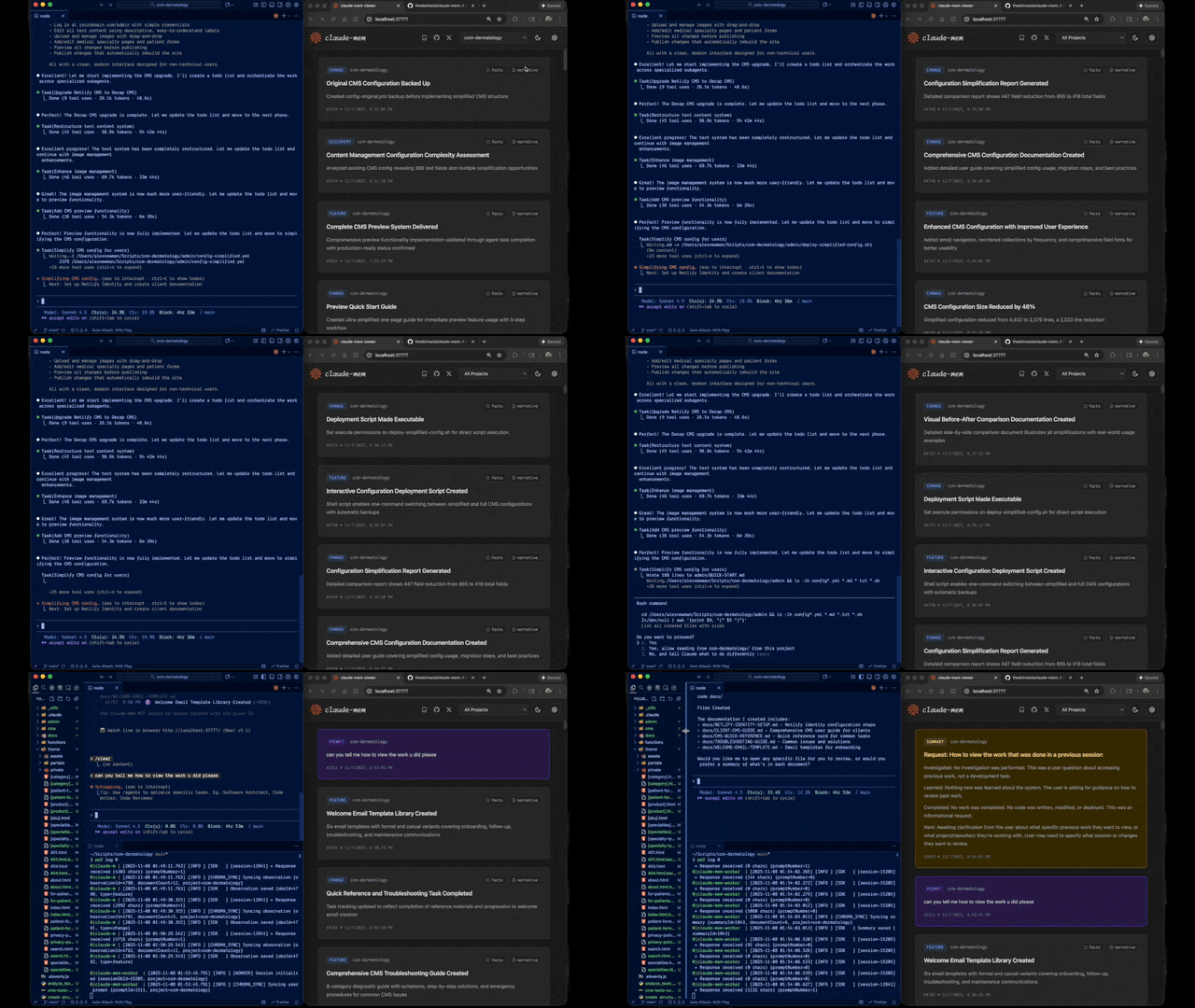
Claude-Mem seamlessly preserves context across sessions by automatically capturing tool usage observations, generating semantic summaries, and making them available to future sessions. This enables Claude to maintain continuity of knowledge about projects even after sessions end or reconnect.
Quick Start
Install with a single command:
npx claude-mem install
Or install for Gemini CLI (auto-detects ~/.gemini):
npx claude-mem install --ide gemini-cli
Or install for OpenCode:
npx claude-mem install --ide opencode
Or install from the plugin marketplace inside Claude Code:
/plugin marketplace add thedotmack/claude-mem

/plugin install claude-mem
Restart Claude Code or Gemini CLI. Context from previous sessions will automatically appear in new sessions.
Note: Claude-Mem is also published on npm, but
npm install -g claude-meminstalls the SDK/library only — it does not register the plugin hooks or set up the worker service. Always install vianpx claude-mem installor the/plugincommands above.
🦞 OpenClaw Gateway
Install claude-mem as a persistent memory plugin on OpenClaw gateways with a single command:
curl -fsSL https://install.cmem.ai/openclaw.sh | bash
The installer handles dependencies, plugin setup, AI provider configuration, worker startup, and optional real-time observation feeds to Telegram, Discord, Slack, and more. See the OpenClaw Integration Guide for details.
Key Features:
- 🧠 Persistent Memory - Context survives across sessions
- 📊 Progressive Disclosure - Layered memory retrieval with token cost visibility
- 🔍 Skill-Based Search - Query your project history with mem-search skill
- 🖥️ Web Viewer UI - Real-time memory stream at http://localhost:37777
- 💻 Claude Desktop Skill - Search memory from Claude Desktop conversations
- 🔒 Privacy Control - Use
<private>tags to exclude sensitive content from storage - ⚙️ Context Configuration - Fine-grained control over what context gets injected
- 🤖 Automatic Operation - No manual intervention required
- 🔗 Citations - Reference past observations with IDs (access via http://localhost:37777/api/observation/{id} or view all in the web viewer at http://localhost:37777)
- 🧪 Beta Channel - Try experimental features like Endless Mode via version switching
Documentation
📚 View Full Documentation - Browse on official website
Getting Started
- Installation Guide - Quick start & advanced installation
- Gemini CLI Setup - Dedicated guide for Google's Gemini CLI integration
- Usage Guide - How Claude-Mem works automatically
- Search Tools - Query your project history with natural language
- Beta Features - Try experimental features like Endless Mode
Best Practices
- Context Engineering - AI agent context optimization principles
- Progressive Disclosure - Philosophy behind Claude-Mem's context priming strategy
Architecture
- Overview - System components & data flow
- Architecture Evolution - The journey from v3 to v5
- Hooks Architecture - How Claude-Mem uses lifecycle hooks
- Hooks Reference - 7 hook scripts explained
- Worker Service - HTTP API & Bun management
- Database - SQLite schema & FTS5 search
- Search Architecture - Hybrid search with Chroma vector database
Configuration & Development
- Configuration - Environment variables & settings
- Development - Building, testing, contributing
- Troubleshooting - Common issues & solutions
How It Works
Core Components:
- 5 Lifecycle Hooks - SessionStart, UserPromptSubmit, PostToolUse, Stop, SessionEnd (6 hook scripts)
- Smart Install - Cached dependency checker (pre-hook script, not a lifecycle hook)
- Worker Service - HTTP API on port 37777 with web viewer UI and 10 search endpoints, managed by Bun
- SQLite Database - Stores sessions, observations, summaries
- mem-search Skill - Natural language queries with progressive disclosure
- Chroma Vector Database - Hybrid semantic + keyword search for intelligent context retrieval
See Architecture Overview for details.
MCP Search Tools
Claude-Mem provides intelligent memory search through 4 MCP tools following a token-efficient 3-layer workflow pattern:
The 3-Layer Workflow:
search- Get compact index with IDs (~50-100 tokens/result)timeline- Get chronological context around interesting resultsget_observations- Fetch full details ONLY for filtered IDs (~500-1,000 tokens/result)
How It Works:
- Claude uses MCP tools to search your memory
- Start with
searchto get an index of results - Use
timelineto see what was happening around specific observations - Use
get_observationsto fetch full details for relevant IDs - ~10x token savings by filtering before fetching details
Available MCP Tools:
search- Search memory index with full-text queries, filters by type/date/projecttimeline- Get chronological context around a specific observation or queryget_observations- Fetch full observation details by IDs (always batch multiple IDs)
Example Usage:
// Step 1: Search for index
search(query="authentication bug", type="bugfix", limit=10)

// Step 2: Review index, identify relevant IDs (e.g., #123, #456)

// Step 3: Fetch full details
get_observations(ids=[123, 456])
See Search Tools Guide for detailed examples.
Beta Features
Claude-Mem offers a beta channel with experimental features like Endless Mode (biomimetic memory architecture for extended sessions). Switch between stable and beta versions from the web viewer UI at http://localhost:37777 → Settings.
See Beta Features Documentation for details on Endless Mode and how to try it.
System Requirements
- Node.js: 18.0.0 or higher
- Claude Code: Latest version with plugin support
- Bun: JavaScript runtime and process manager (auto-installed if missing)
- uv: Python package manager for vector search (auto-installed if missing)
- SQLite 3: For persistent storage (bundled)
Windows Setup Notes
If you see an error like:
npm : The term 'npm' is not recognized as the name of a cmdlet
Make sure Node.js and npm are installed and added to your PATH. Download the latest Node.js installer from https://nodejs.org and restart your terminal after installation.
Configuration
Settings are managed in ~/.claude-mem/settings.json (auto-created with defaults on first run). Configure AI model, worker port, data directory, log level, and context injection settings.
See the Configuration Guide for all available settings and examples.
Mode & Language Configuration
Claude-Mem supports multiple workflow modes and languages via the CLAUDE_MEM_MODE setting.
This option controls both:
- The workflow behavior (e.g. code, chill, investigation)
- The language used in generated observations
How to Configure
Edit your settings file at ~/.claude-mem/settings.json:
{
  "CLAUDE_MEM_MODE": "code--zh"
}
Modes are defined in plugin/modes/. To see all available modes locally:
ls ~/.claude/plugins/marketplaces/thedotmack/plugin/modes/
Available Modes
| Mode | Description |
|---|---|
code | Default English mode |
code--zh | Simplified Chinese mode |
code--ja | Japanese mode |
Language-specific modes follow the pattern code--[lang] where [lang] is the ISO 639-1 language code (e.g., zh for Chinese, ja for Japanese, es for Spanish).
Note:
code--zh(Simplified Chinese) is already built-in — no additional installation or plugin update is required.
After Changing Mode
Restart Claude Code to apply the new mode configuration.
Development
See the Development Guide for build instructions, testing, and contribution workflow.
Troubleshooting
If experiencing issues, describe the problem to Claude and the troubleshoot skill will automatically diagnose and provide fixes.
See the Troubleshooting Guide for common issues and solutions.
Bug Reports
Create comprehensive bug reports with the automated generator:
cd ~/.claude/plugins/marketplaces/thedotmack
npm run bug-report
Contributing
Contributions are welcome! Please:
- Fork the repository
- Create a feature branch
- Make your changes with tests
- Update documentation
- Submit a Pull Request
See Development Guide for contribution workflow.
License
This project is licensed under the GNU Affero General Public License v3.0 (AGPL-3.0).
Copyright (C) 2025 Alex Newman (@thedotmack). All rights reserved.
See the LICENSE file for full details.
What This Means:
- You can use, modify, and distribute this software freely
- If you modify and deploy on a network server, you must make your source code available
- Derivative works must also be licensed under AGPL-3.0
- There is NO WARRANTY for this software
Note on Ragtime: The ragtime/ directory is licensed separately under the PolyForm Noncommercial License 1.0.0. See ragtime/LICENSE for details.
Support
- Documentation: docs/
- Issues: GitHub Issues
- Repository: github.com/thedotmack/claude-mem
- Official X Account: @Claude_Memory
- Official Discord: Join Discord
- Author: Alex Newman (@thedotmack)
Built with Claude Agent SDK | Powered by Claude Code | Made with TypeScript
What About $CMEM?
$CMEM is a solana token created by a 3rd party without Claude-Mem's prior consent, but officially embraced by the creator of Claude-Mem (Alex Newman, @thedotmack). The token acts as a community catalyst for growth and a vehicle for bringing real-time agent data to the developers and knowledge workers that need it most. $CMEM: 2TsmuYUrsctE57VLckZBYEEzdokUF8j8e1GavekWBAGS